Mastering the Meesho Seller Panel: The Ultimate Supplier Dashboard Guide
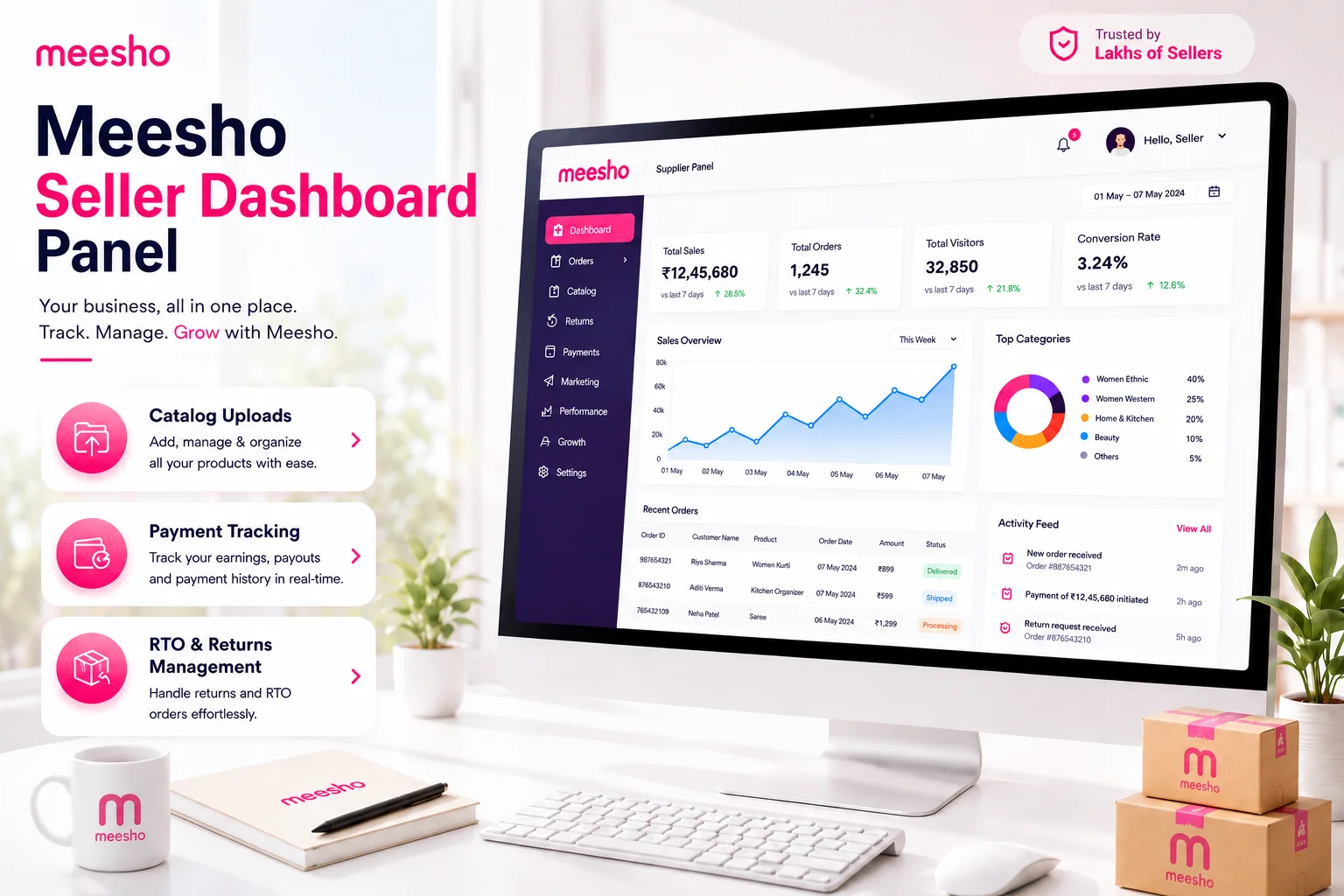
The Meesho Seller Panel (widely known as the Meesho Supplier Panel) is the central command center for your e-commerce business. Whether you are a newly registered seller or an established business owner looking to scale, understanding the intricacies of this dashboard is fundamental to your success. Unlike other marketplace dashboards that can be overwhelming, Meesho has designed a highly intuitive interface aimed at simplifying the selling process.
In this comprehensive guide, we will break down every critical feature of the supplier dashboard, from efficient order processing and advanced catalog management to deciphering your payment cycles and navigating the advertisement portal.
1. The Home Dashboard: Your Business at a Glance
When you log into the supplier panel, the Home Dashboard provides an immediate health check of your business. The interface is divided into actionable widgets that highlight urgent tasks and overall performance metrics.
- Actionable Alerts: Notifications regarding pending orders that require immediate packing, out-of-stock fast-moving inventory, and pending return disputes.
- Performance Metrics: Visual graphs tracking your daily views, clicks, and gross sales revenue over specific time frames (7 days, 15 days, or 30 days).
- Supplier Rating Overview: A snapshot of your current rating (out of 5.0), which directly influences your organic visibility on the Meesho customer app.
2. Catalog Uploads & Inventory Management
Your catalog is your digital storefront. The Catalog Uploads section on the panel is where you breathe life into your product listings.
Meesho supports two primary methods for adding products:
- Single Catalog Upload: Ideal for adding new variants or limited stock. You manually input the product category, upload high-resolution images, set your pricing, and enter detailed product descriptions.
- Bulk Catalog Upload: Designed for scale. By downloading category-specific Excel templates, you can map out hundreds of SKUs, specify GST percentages, and define attributes offline. Once uploaded, the system validates the data and flags any errors (like missing HSN codes) for easy correction.
Pro Tip: Always utilize the "Quality Check" feedback within the inventory tab. If an image is flagged for poor lighting or watermarks, replacing it promptly prevents your listing from being suppressed.
3. Order Processing & Dispatch Management
The 'Orders' tab is the engine room of your daily operations. Efficiency here dictates your dispatch speed and, consequently, your supplier rating.
Orders are categorized into logical stages:
- Pending: New orders that have dropped into your account. You must explicitly 'Accept' them to generate the shipping label.
- Ready to Ship: Orders where labels are generated. The items must be packed, labeled securely, and kept ready for the logistics pickup executive.
- Shipped: Packages that have been successfully scanned and picked up by the courier.
- Cancelled: Orders cancelled by the customer before dispatch or by Meesho due to SLA (Service Level Agreement) breaches.
Optimize Your Dispatch with Meesho Label Cropper
Processing hundreds of orders? Automatically format standard Meesho A4 PDFs into perfectly sized 4x6 thermal printer labels in seconds.
4. Demystifying the Payments Section
A healthy cash flow is vital. Meesho operates on a rapid payment cycle, generally settling funds within 7 days of order delivery (depending on your seller tier). The Payments dashboard is highly transparent:
- Next Payout: The exact amount scheduled for the upcoming bank transfer.
- Settled Payouts: Historical data of all money deposited into your registered bank account.
- Deductions & Recoveries: Detailed logs of any shipping charges for returns or penalties deducted from your payouts. You can download the ledger as an Excel file for seamless accounting.
5. Managing Returns (RTO & Customer Returns)
Returns are an unavoidable reality of e-commerce. The Meesho Seller Panel segments returns into two distinct categories:
- Courier Returns (RTO - Return to Origin): Packages that could not be delivered (e.g., customer unavailable, wrong address). Meesho does not charge forward or reverse shipping fees for genuine RTOs.
- Customer Returns: Items delivered successfully but returned by the buyer (e.g., size issue, didn't like the product). Reverse shipping fees are applicable here and will be adjusted in your payments.
Crucially, the Dispute Section lives within this tab. If a returned package contains a missing or damaged item, you must upload clear unboxing videos and images within a specific timeframe (usually 48-72 hours) to claim reimbursement.
6. Advertisement & Promotions Dashboard
To scale rapidly, relying purely on organic traffic is rarely enough. The Advertisement tab allows you to run Sponsored Campaigns.
You allocate a daily budget, and Meesho boosts your product visibility across the app. The dashboard provides granular analytics on your ad spend, including:
- ROI (Return on Investment): How much revenue was generated per rupee spent.
- Clicks & CTR (Click-Through Rate): Tracking how engaging your main product images are.
- Orders via Ads: Segregating organic sales from ad-driven sales.
7. Notice Board & Seller Support
The e-commerce landscape changes rapidly. The Notice Board section on the panel is where Meesho communicates policy updates, upcoming mega-sale events (like the Maha Indian Savings Sale), and platform changes.
If you encounter technical glitches or need policy clarification, the Support/Help section allows you to raise tickets directly. The interface tracks the status of your tickets, ensuring transparent communication with Meesho's seller support team.
Meesho Listing Profit & Margin Calculator
Eliminate pricing guesswork. Calculate exact profit margins, taking into account GST, packaging costs, and potential return rates before listing your products.
Strategic Takeaways for Maximum Growth
Navigating the Meesho Seller Panel efficiently is what separates top-tier suppliers from the rest. By mastering bulk uploads, closely monitoring your ad ROI, strictly adhering to Next-Day Dispatch (NDD) guidelines, and meticulously tracking return disputes, you safeguard your profit margins and ensure sustainable business growth. Pair these platform strategies with robust automation tools to streamline your backend operations, allowing you to focus on sourcing the best products for your customers.
Frequently Asked Questions
Navigate to the 'Catalog Uploads' tab in your dashboard. You can choose 'Add Single Catalog' for individual products or 'Bulk Upload' using a downloaded Excel template to add multiple products simultaneously.
Click on the 'Payments' tab. Here you will see 'Next Payment', 'Last Payment', and a detailed ledger of all settled and outstanding amounts including any deductions or penalties.
Access the 'Returns/RTO' section. It categorizes returns into Customer Returns and Courier Returns (RTO). You can track incoming return shipments and raise disputes if a returned item is damaged or missing.
🚀 Grow Your Seller Account with Our Tools
Process labels 10x faster, calculate absolute profit metrics and improve product listings instantly!


Frequently Asked Questions
How do I upload catalogs on the Meesho Seller Panel?
Navigate to the 'Catalog Uploads' tab in your dashboard. You can choose 'Add Single Catalog' for individual products or 'Bulk Upload' using a downloaded Excel template to add multiple products simultaneously.
Where can I check my upcoming payouts on the Meesho dashboard?
Click on the 'Payments' tab. Here you will see 'Next Payment', 'Last Payment', and a detailed ledger of all settled and outstanding amounts including any deductions or penalties.
How do I manage RTO (Return to Origin) on the Meesho supplier panel?
Access the 'Returns/RTO' section. It categorizes returns into Customer Returns and Courier Returns (RTO). You can track incoming return shipments and raise disputes if a returned item is damaged or missing.